
Best TM APN Settings for Smooth Internet Access

Access Point Name for TM helps you get fast and stable mobile internet on your TM SIM. If your data is slow or not working, the right APN for TM can fix it in minutes. Below, I have provided TM APN settings for Android, iOS, and gaming.
TM APN Settings
The right TM APN settings help you to get fast internet and a stable network connection. Before APN setting, ensure that you have completed TM SIM registration. Below are the best APNs for TM:
TM APN For Fast Internet
Follow these settings to get fast internet on both Android and iOS devices:
Parameter | Value |
Name | My Globe Internet |
APN | internet.globe.com.ph |
Port | Not Set |
MVNO Value | Not Set |
MMS Proxy | Not Set |
MNC | 02 |
MCC | 515 |
Username | Not Set |
Bearer | Unspecified |
APN Protocol | IPv4 |
Enable/disable APN | APN Enabled |
Password | Not Set |
Server | Not Set |
Authentication Type | Not Set |
MVNO Type | None |
APN Type | default |
MMSC | Not Set |
MMS Port | Not Set |
Globe APN For MMS
Here is the setting for Globe MMS APN:
Parameter | Value |
Name | Globe MMS |
APN | mms.globe.com.ph |
Port | Not Set |
Authentication Type | Not Set |
MMS Proxy | 192.40.100.22 |
Bearer | Unspecified |
MCC | 515 |
MMS Port | 8080 |
MMSC | |
Enable/disable APN | APN Enabled |
Username | Not Set |
Server | Not Set |
MVNO type | None |
Password | Not Set |
MVNO Value | Not Set |
APN protocol | IPv4 |
APN type | mms |
MNC | 02 |
TM APN For INET
Follow these settings for TM INET:
Parameter | Value |
Name | myGlobe INET |
APN | http.globe.com.ph |
Proxy | Not set |
APN Type | default,supl |
Server | Not set |
APN Roaming Protocol | IPV4 |
MCC | 515 |
Username | Not set |
MVNO value | Not set |
Password | Not set |
APN Protocol | IPV4 |
MVNO type | Not set |
MNC | 02 |
Bearer | Unspecified |
APN Enable/Disable | Turn on or enable APN |
MMSC | Not set |
Authentication Type | Not set |
MMS Port | Not set |
Proxy Port | Not set |
MMSC Proxy | Not set |
TM APN For Gaming
Here are the Access point names for TM for smooth gaming without any network issues:
Parameter | Value |
Name | TM Gaming |
APN | http.globe.com.ph |
Proxy | 203.177.42.214 |
Port | 8080 |
Username | (leave blank) |
Password | (leave blank) |
MCC | 515 |
MNC | 03 |
APN Type | default,supl |
APN Protocol | IPv4 |
Bearer | LTE/5G |
TM SIM APN Configuration
Here is how to set up APN on your Android and iOS devices:
APN Setting On Android
Here is how to set up APN on Android devices:
- Open your phone’s Settings and navigate to Mobile Networks.
- Tap Access Point Names (APN) to view your current profiles.
- Create a new APN by tapping Add or the (+) icon.
- Carefully enter the correct APN details for the TM SIM.
- Save the settings once done, and select the new APN
- Finally, restart your phone so the changes take effect and your mobile data works smoothly.
APN Setting on iOS
Follow these steps for APN settings on iOS devices:
- Open your phone’s Settings and go to Mobile Networks.
- Tap Access Point Names (APN) to view the available profiles.
- Create a new APN by tapping the Add (+) icon.
- Enter the correct APN details for your TM SIM.
- Tap Save to store the settings.
- Select the newly created APN to activate it.
- Restart your phone so the new APN settings apply properly and your mobile data works smoothly.
Troubleshooting The Common APN Errors
Sometimes, users face issues like no signal, weak connection, and internet issues even after APN settings. Below are the 100% working solutions for such issues:
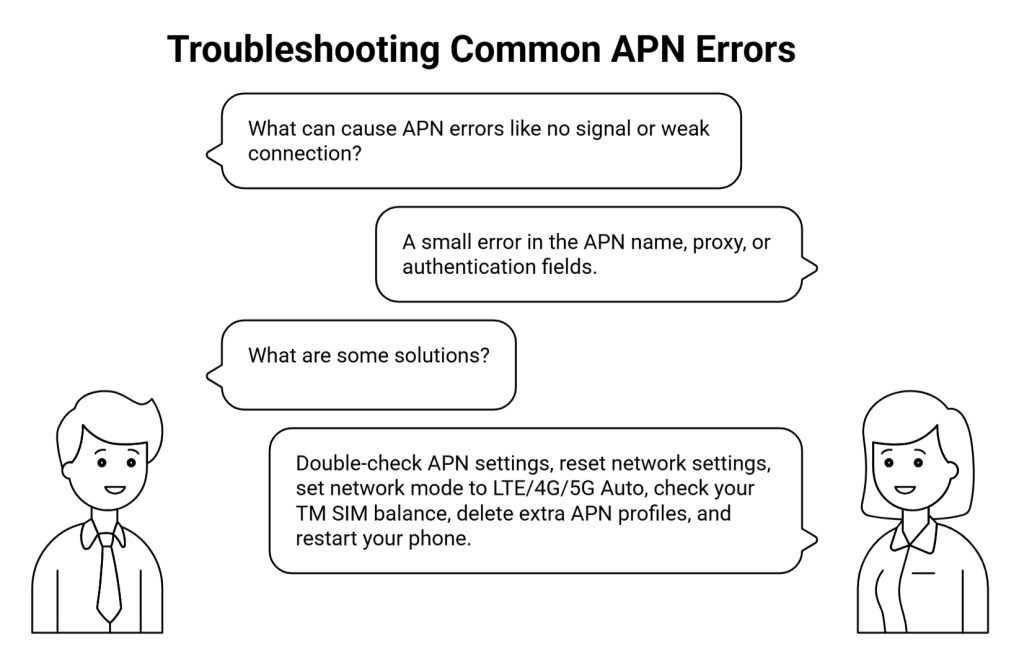
If you’ve tried all the steps above and the issue still persists, contact TM support for further assistance.
FAQs
Conclusion
Correct TM APN settings help fix slow data, no internet, and unstable connections on your TM SIM. The best APN values improve speed for browsing, MMS, INET, and gaming on both Android and iOS devices. If issues remain, reset network settings, remove extra APNs, and restart your phone. Using the proper tm access point improves signal stability and keeps your mobile data working smoothly every day.